Global Alumni: Navigating Canvas
Navigating the Content on Canvas
Before you start with your learning material, it is highly recommended that you familiarize yourself with this platform. Canvas works well on all the popular browsers, including Chrome, Safari, Firefox, and Microsoft Edge. Ensure you are using the latest version of your browser.
You can navigate the content on Canvas in multiple ways.
Using the Module Overview Page
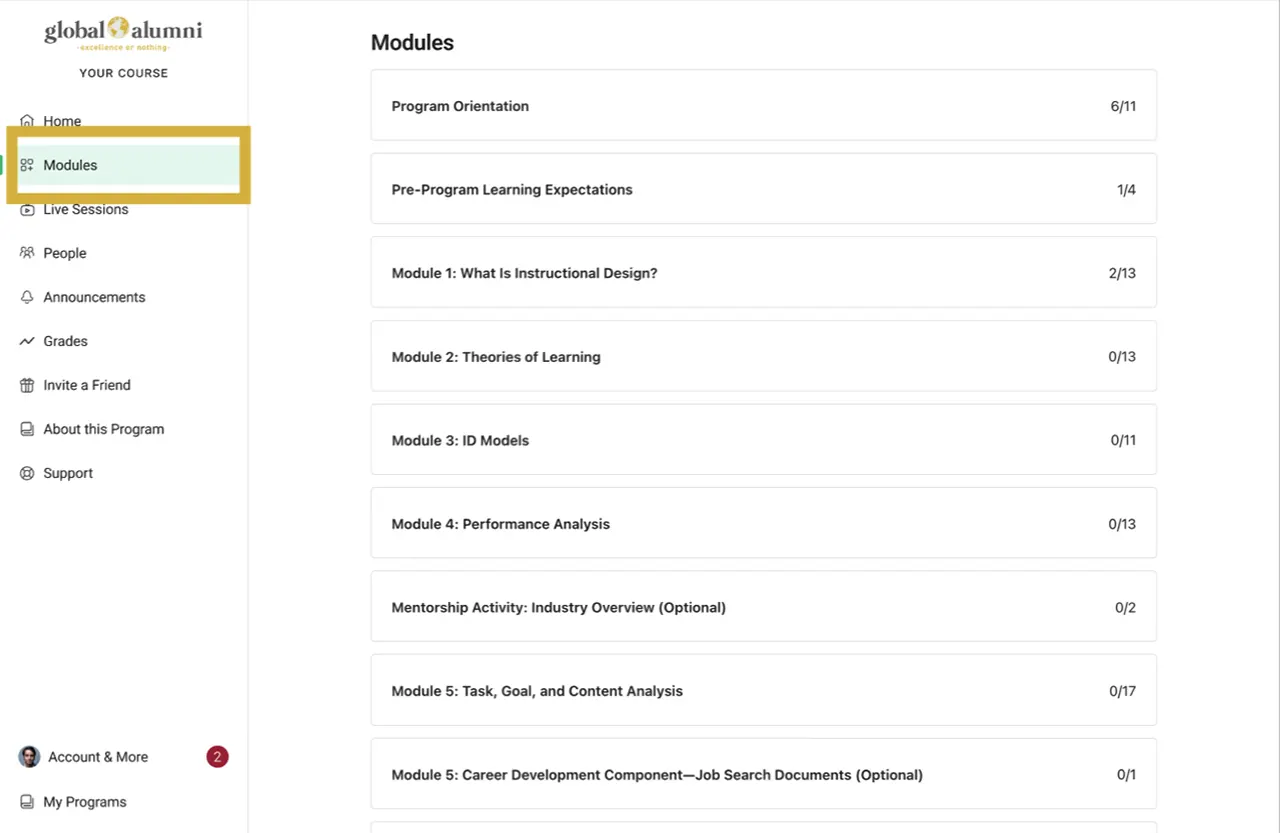
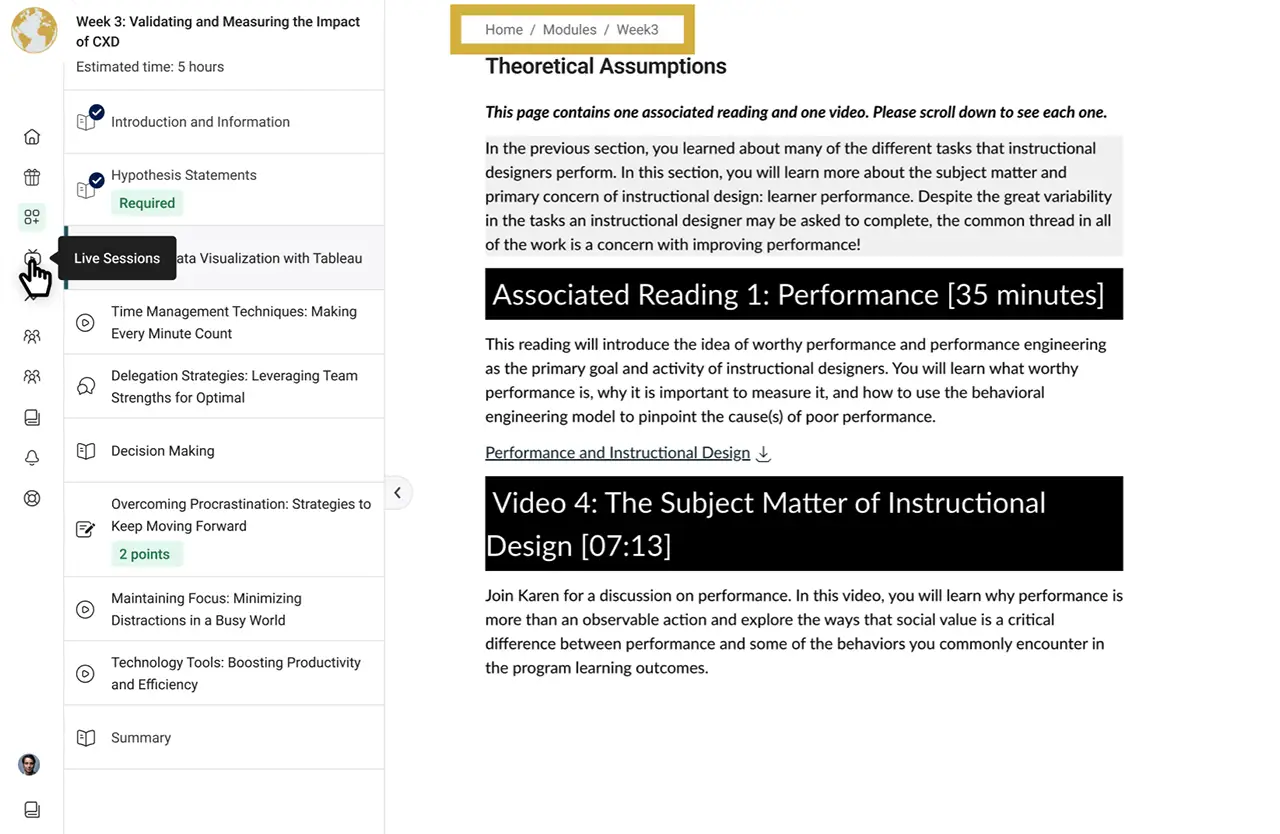
- Select “Modules” from the left navigation menu to reach the Module Overview page.
- View all modules in the Modules section and explore any module in depth.
- See completion statistics for each module (e.g., 2/13 activities completed).
Using the Progress Bar
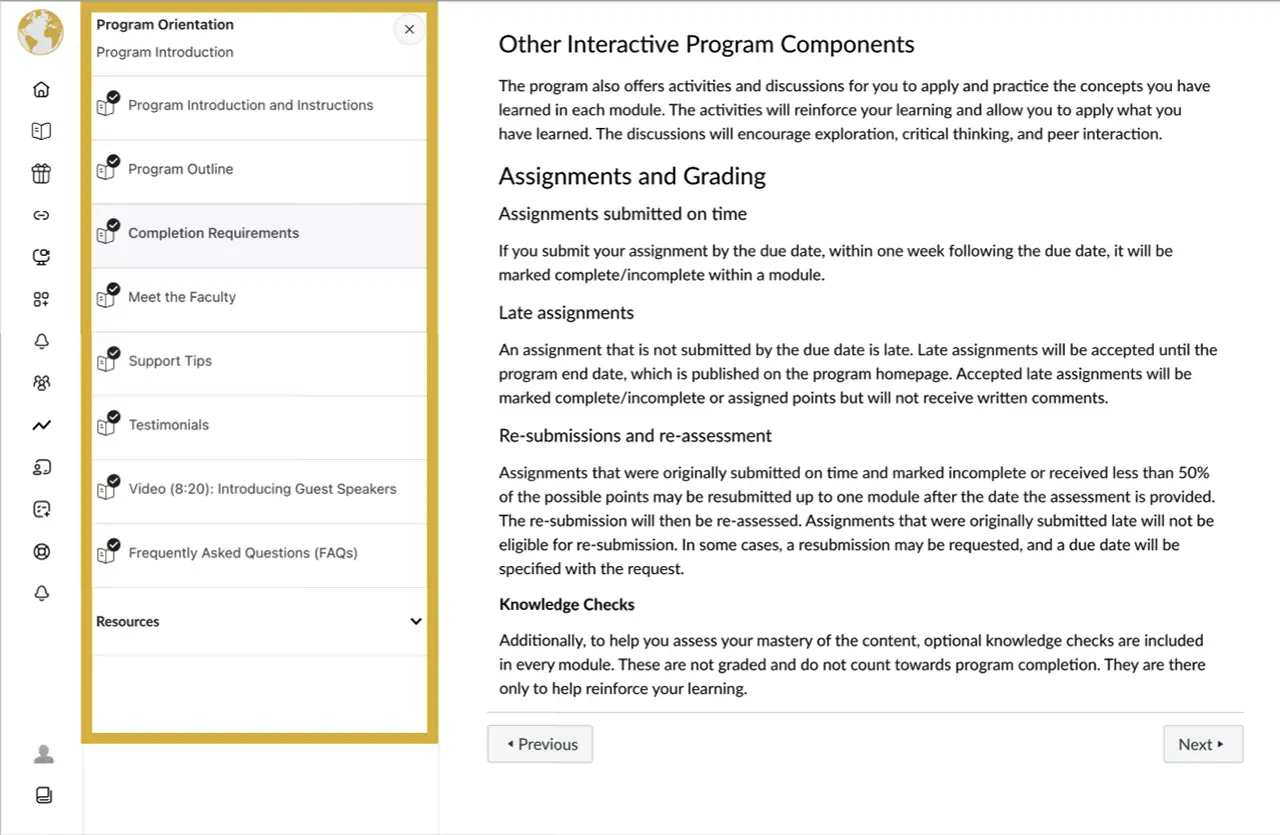
- Navigate within the module using the progress bar on the left side, which shows:
- Readings, videos, discussions, and assignments
- Your current location, which is highlighted
- Completion status, with checkmarks appearing when activities are completed
- Required activities, which are clearly marked
- To progress through the module pages and activities in order, select the “Next” button in the bottom-right corner of the window after you complete each page.
- To return to a previous page or activity, select the “Previous” button in the bottom-left corner of the window. Repeatedly selecting the Previous button returns you to the Module Overview page.
- Alternatively, access specific content by selecting any item directly in the progress bar.
Using the Breadcrumbs
- You can also select “Modules” from the breadcrumbs at the top of each page to return to the Module Overview page.
Setting Your Time Zone
All learning platform accounts are set up in the UTC zone by default. Therefore, all notification emails you receive from the learning platform and all assignment due dates and times will be displayed in the UTC zone.
Please follow these steps to change the settings to your local time.
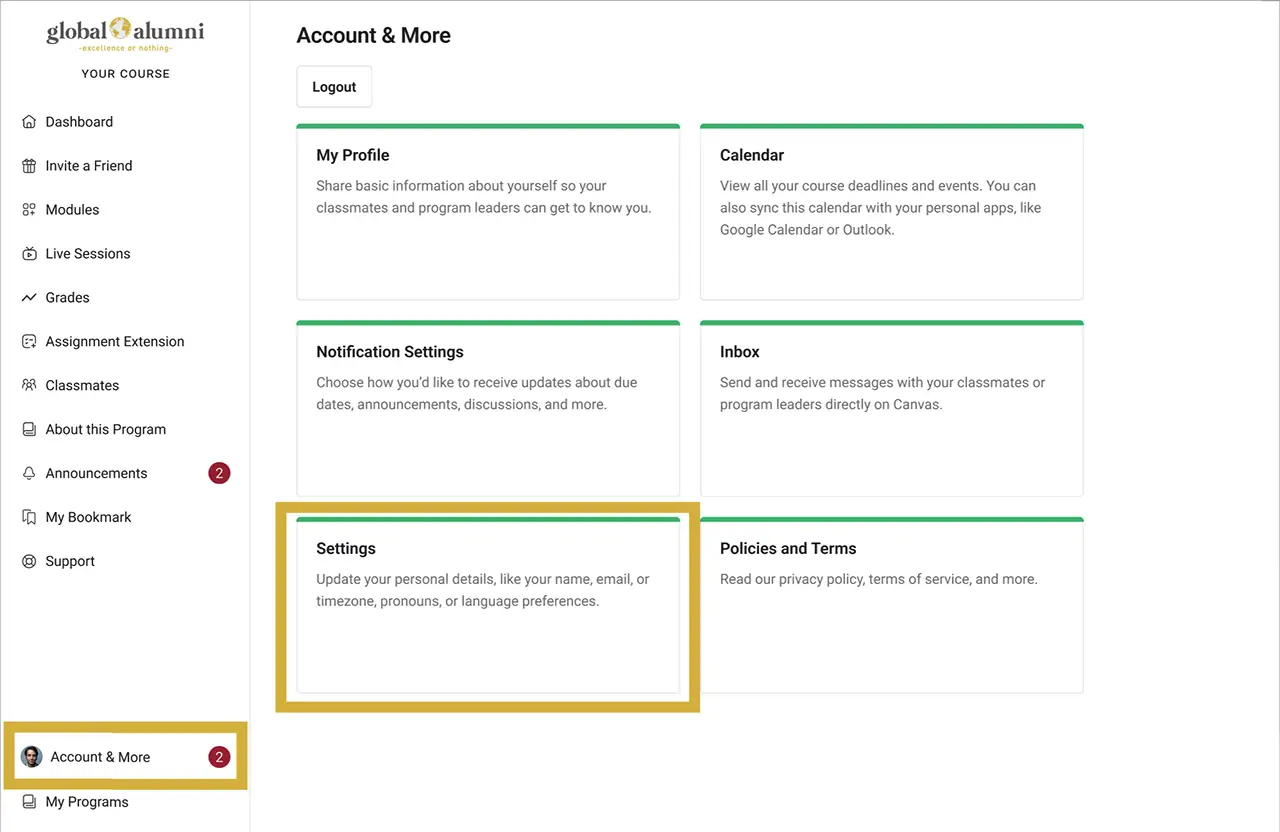
- Select “Account & More” from the left menu.
- Select “Settings” from the menu on the right-hand side.
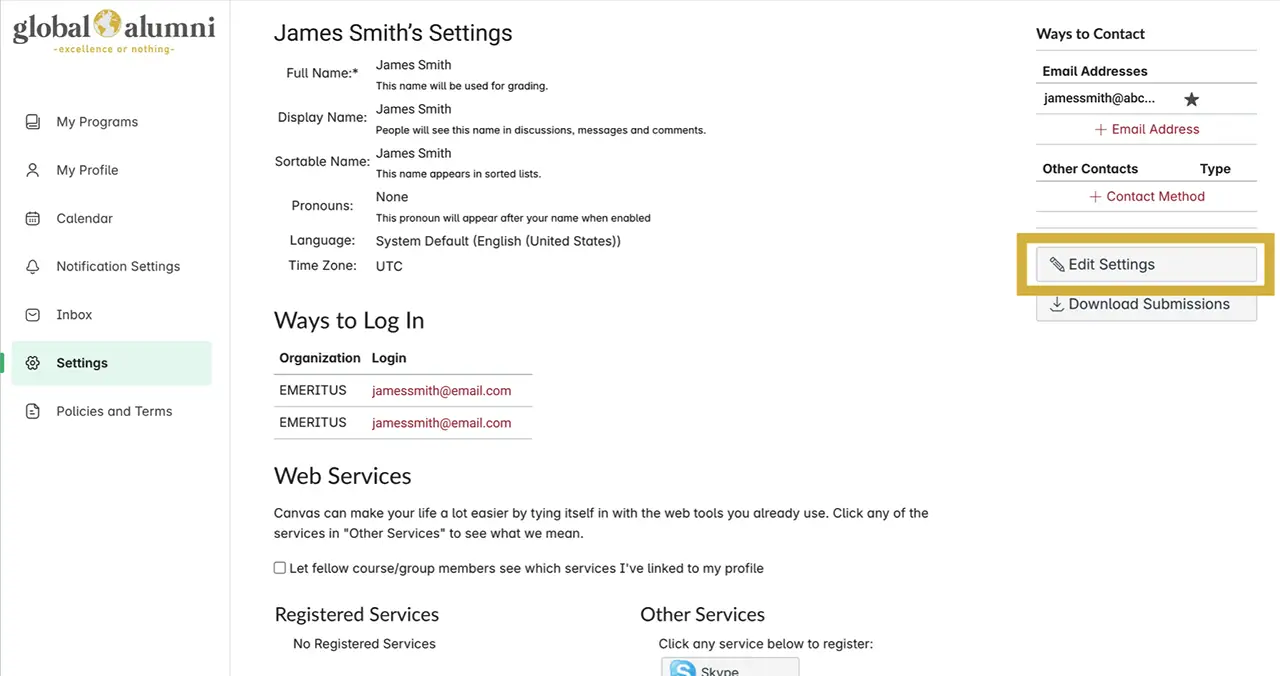
- Select the “Edit Settings” button on the right side.
- Find the “Time Zone” field and select the appropriate time zone for your location to ensure you receive notifications with due dates and times in your time zone.
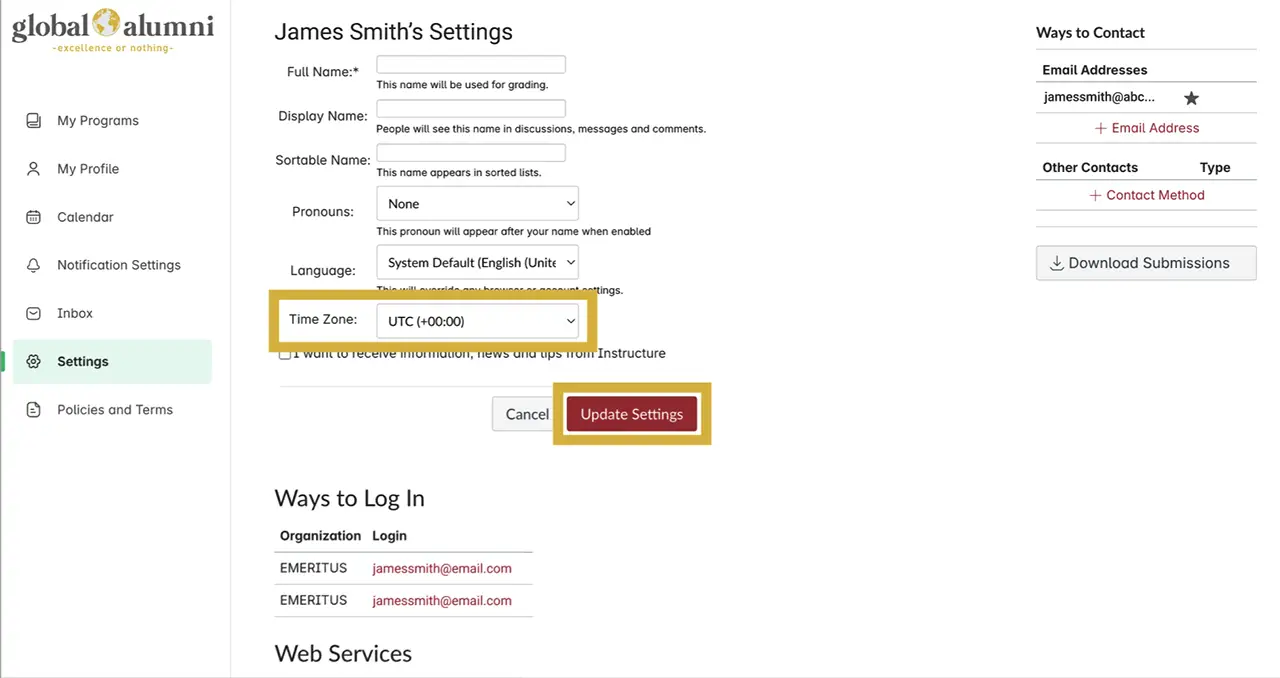
- Select the “Update Settings” button to save your changes.
Managing Assignments and Grades
You can access assignments and check your progress through the “Grades” tab on the left navigation pane, which displays:
- All required activities listed in the specific sequence intended to make the most sense conceptually
- Total points possible and your scores for each assignment
- Completion and grading status for each assignment
Review this student guide on using the Grades tab for specific questions about the gradebook.
Managing Discussions
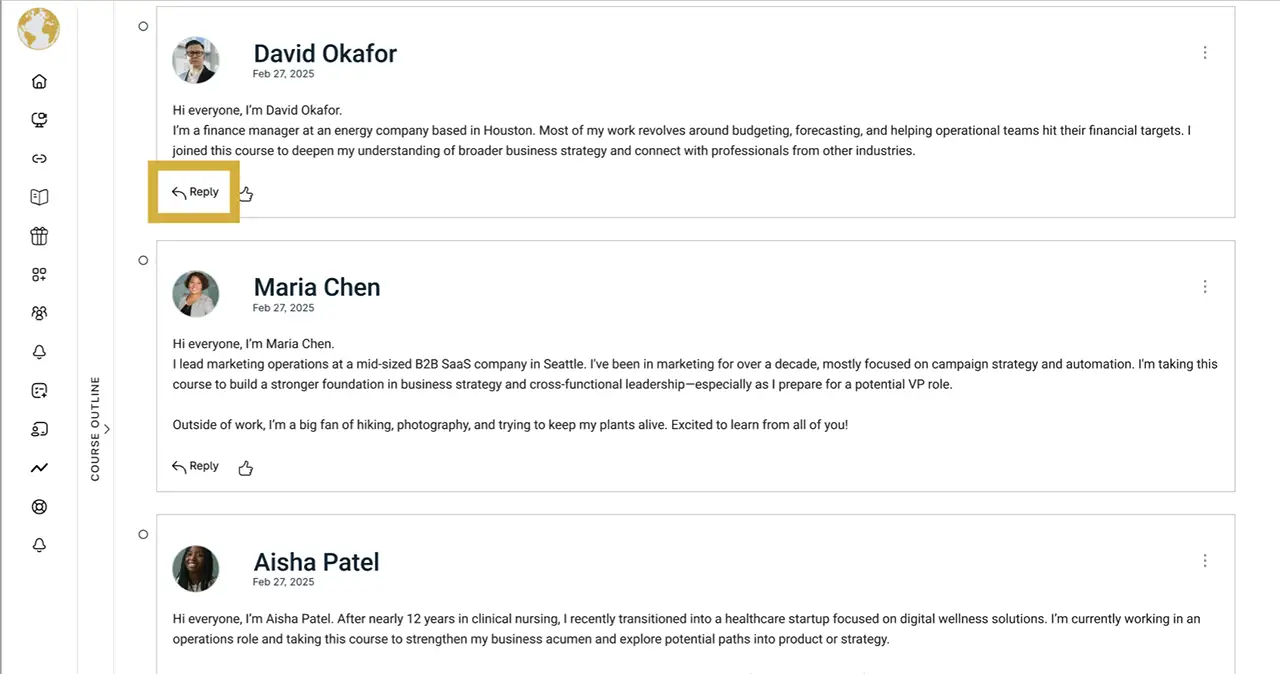
Throughout the learning journey, you may have a few opportunities to engage in content-related discussions with your peers. To post a reply, please use the following steps:
- Select “Reply” at the bottom of the discussion page.
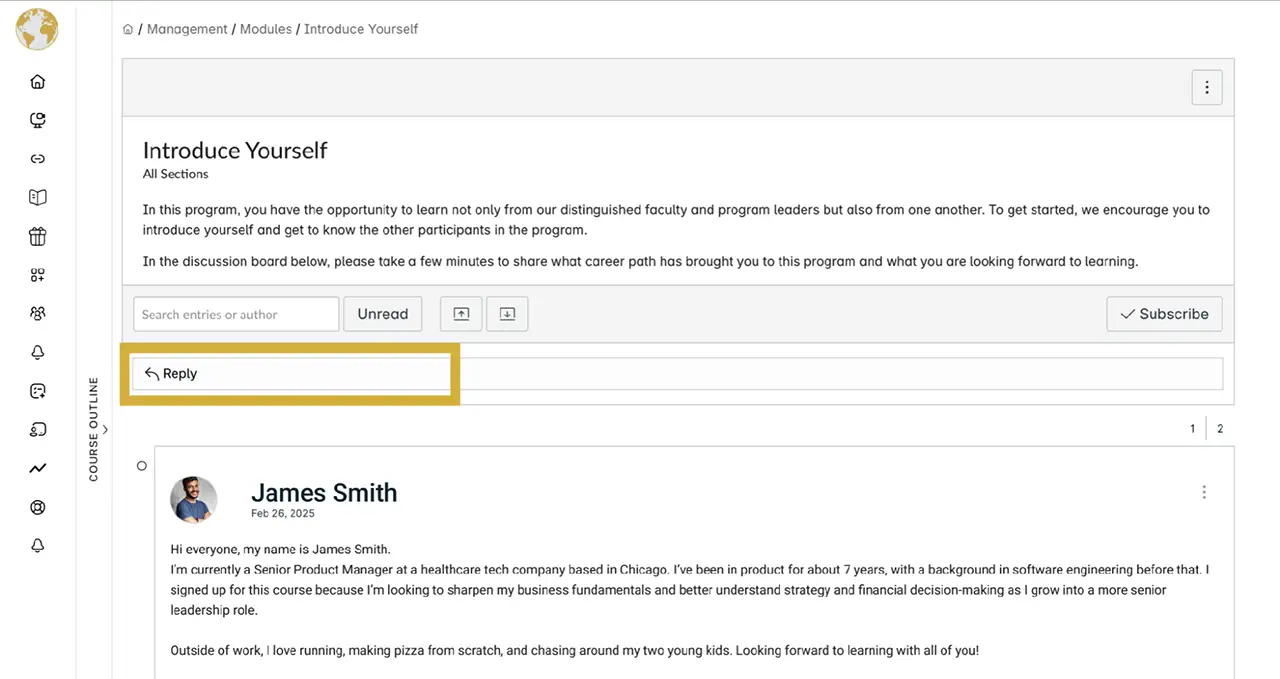
- Type your response into the text field and select the “Post Reply” button. You are encouraged to make the first line of your post a brief subject statement. For example: Question on how to edit a scripting file.
- Once you post your reply, we encourage you to review your peers’ responses and share your views.